You will learn
Learn how to create geofences in Klaviyo so that you can message profiles that are near your stores and drive in-store engagement. This article walks you through creating your first geofence.
Only accounts with a mobile app can use geofencing. Your app must be on one of the following versions of the Klaviyo mobile SDKs.
| iOS SDK | v 5.2.0 or later |
| Android SDK | v 4.2.0 or later |
| React Native SDK | v 2.2.0 or later |
Additionally, your app must request that users share their location to track when they enter or exit a geofence. Klaviyo will not create geofence events for profiles who do not share their location.
What are geofences?
A geofence is a virtual boundary, defined by a center point and radius, around a real-world physical location. Geofences allow you to track when profiles enter or exit a specific area and then message those profiles with timely, relevant, location-based messages.
For example, you can set up a geofence with a 500 meter radius around your store. Then you can create a flow that triggers when a mobile app user enters the geofence and sends a text message with an enticing offer to visit the store.
You can use geofences for a variety of purposes, including:
- Triggering a flow to send real-time, location-based messages,
- Building segments of profiles that have entered your stores and sending those profiles campaigns about store-specific promotions or events,
- Creating reports and dashboards based on geofencing events to measure in-store engagement.
Before you begin
- If you have not already, confirm with your mobile app development team that your app is using the latest version of the Klaviyo mobile SDKs and that it is able to track users' locations.
- In addition, read through our guide to flows and guide to segments to ensure that you are familiar with how to leverage geofencing events across Klaviyo.
How geofencing works in Klaviyo
- You create one or more geofences in the Audience > Geofences tab.
- Profiles download your mobile app and share their location.
- When a profile opens your mobile app, Klaviyo retrieves the closest 20 geofences to the profile’s current location, stores them on the device, and begins monitoring for interactions with those geofences.
- When the device enters or exits a geofence, Klaviyo generates an event – Entered Geofence or Exited Geofence, respectively.
- You use those events in flows, segments, and reporting to drive in-store conversion and analyze your locations' performance.
How to create a geofence
Geofencing is subject to regional privacy and location-data regulations. Some regions require a minimum geofence radius or place restrictions on how location data can be used. Make sure your geofence settings comply with all applicable local laws.
To create a geofence:
- Navigate to Audience > Geofences.
- Click Create geofence.
- Add a geofence name.
- Search for the address of your desired location in the map search bar to automatically populate the address, latitude, and longitude fields. You may also manually enter the latitude and longitude coordinates if your location does not have a defined address.
- Define the radius in meters. Values may range from 50 meters to 10,000 meters. While Klaviyo allows any value in this range, note that local regulations may require a minimum geofence radius.
- Select which events – enter and/or exit – you would like to track for the geofence. If you select only Enter, Klaviyo will not generate Exited Geofence events when devices leave a geofence.
- Click Save.
Once saved, the geofence will appear in both the list and map views. You can create up to 5,000 geofences in Klaviyo.
View and manage geofences
You can view your geofences in two different views within the Geofences tab.
List view
- In the List view, you may view a table with all of your geofences, including their name, address, and radius. Additionally, you may search or sort the table based on the geofence name.
- To edit a geofence, click on the name of the geofence OR open the three-dot menu and click Edit.
Map view
- In the Map view, you may visualize all of your geofences on an interactive map. You can pan and zoom the map to find a specific area, or you can search for a specific address.
- To edit a geofence, click on a geofence on the map and then click Edit in the drawer that appears on the right.
Disable geofences
On occasion, you may want to stop generating events for a specific geofence. For example, if a store closes for renovation or if an annual event ends, you likely want to turn off the geofence without fully deleting it from Klaviyo so that you do not need to recreate it in the future.
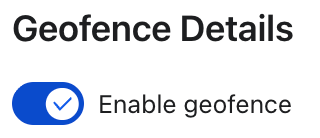
To disable a geofence, select the geofence from the list view. Then on the edit screen, click the toggle button next to Enable geofence. To start tracking events for the geofence in the future, click the toggle button again.
Geofence events
Depending on your geofences’ settings, Klaviyo will generate the following events when a device that is sharing its location interacts with a geofence:
- Entered geofence - created when a device crosses into the geofence.
- Exited geofence - created when a device leaves the geofence.
Each event includes metadata such as:
- Geofence name
- Latitude and longitude
- Radius
You then can use these events in segments, flow, or reporting, just like any other event in Klaviyo.
Use geofencing in flows and segments
Trigger flows
Use geofence events to send messages when customers are near your store. A few example use cases are:
- Trigger a flow off of the Entered Geofence event to send a welcome offer or in-store only deals when a profile enters your store.
- Trigger a flow using the Exited Geofence event if a profile did not make an in-store purchase. Wait a few hours and then send a message encouraging the profile to purchase online.
Build segments
Create segments of profiles that have entered your geofences to know which profiles have visited your retail stores. Then leverage these segments to send location-specific offers to profiles.
For example, build a segment of profiles that have entered the geofence for your New York City location in the last 90 days. Then send a campaign highlighting store specific news, like upcoming events or promotions.