You will learn
Learn how to clone forms, flows, segments, campaigns, and templates. When cloning, you can either clone to the same account or another account(s).
Before you begin
You must have the appropriate user permissions both in the account you’re cloning from and the account(s) you’re cloning to. For instance, say you’re an Admin in accounts A and B, but a Content Creator in account C. In this case, you can clone a flow from account A to B (or vice versa), but cannot clone a flow to or from account C.
You can create a clone in up to 100 other accounts at once.
What cannot be cloned
Cloning allows you to copy a form, flow, segment, campaign, or template.
In the same account, the clone is an exact duplicate.
However, when cloning to another account, some information may be left out in the transfer. This is because the 2 accounts may have different channels, metrics, list names, etc. In most cases, you’ll simply be able to change this information (e.g., switching the metric or list name) as part of the cloning process.
Some content (such as coupons, review blocks, price drop flows, and dynamic or universal content) will not be cloned. While the objects themselves (e.g., text boxes) will be cloned, the content within those objects will not.
Any time you’re cloning flows, you cannot change the trigger type (e.g., you can’t turn a metric-triggered into a list-triggered flow). You can, however, change which metric, list, segment, or date triggers the flow (e.g., Placed order instead of Order confirmed).
Additionally, segments using advanced operators (i.e., event operators beyond "equals" and "includes any of") or multiple where clauses cannot be cloned across accounts at this time.
How to clone
The process of cloning is almost exactly the same for segments, flows, forms, campaigns, and templates. Cloning flows and campaigns require additional details to be selected (e.g., send date, trigger).
- Click the 3 vertical dots to the right of the form, flow, segment, campaign, or template that you want to copy.
- Select Clone.
- Choose either:
- Clone to the current account (account you are within)
- Clone to other account (other account you have appropriate permissions within)
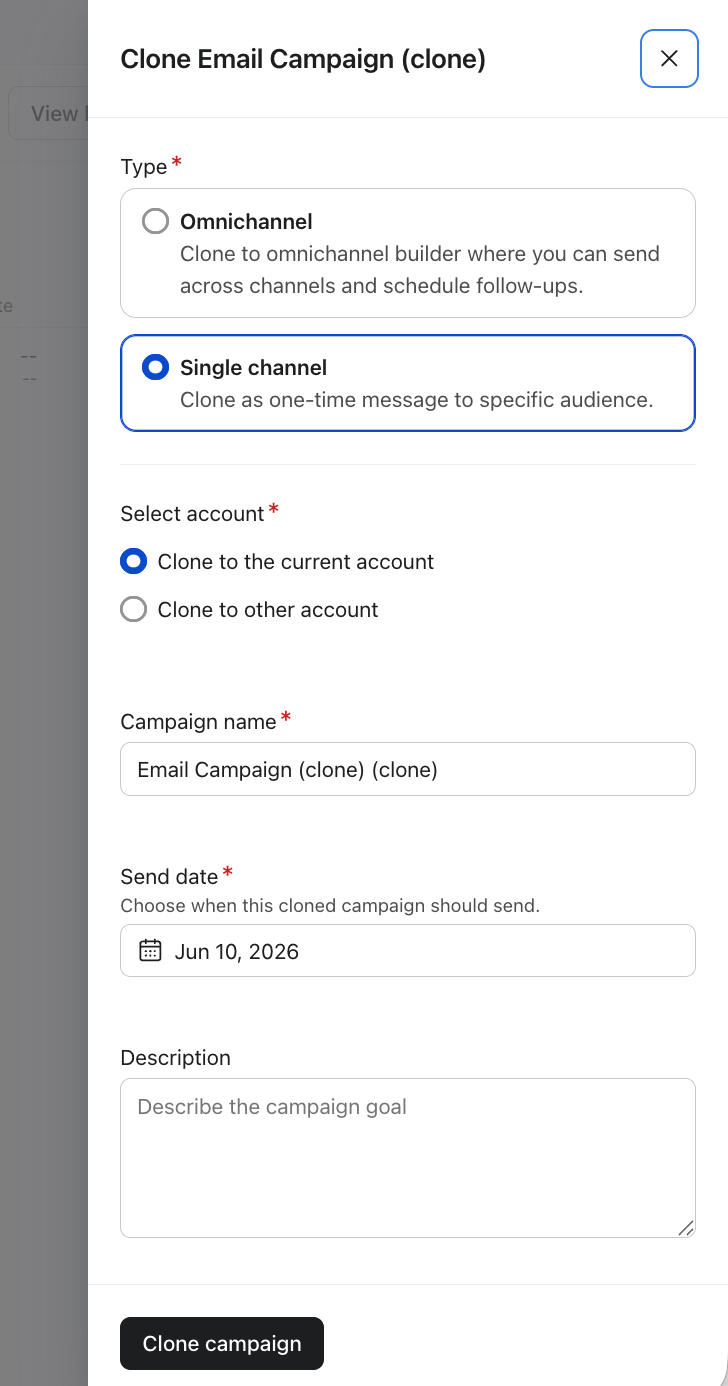
Clone to the current account
If cloning within the same account, all you need to do is:
- Name the cloned object and select additional details if applicable.
- Select trigger for cloned flow.
- Select send date for cloned campaign.
- If you are cloning a single-channel campaign, you will see an additional option to convert to omnichannel campaign. If selected, the cloned campaign will open in the omnichannel canvas.
- Click Clone (campaigns) or Continue (forms, flows, segments, and templates)
Clone to other account(s)
- If you chose to clone to the same account, you’ll see the clone with the name you chose within your list.
- To clone to another account, search for and then check the account(s) you’d like to copy to. You can select up to 100 accounts.
Note: you must have the appropriate user permission in the accounts you are transferring to and from.
- Click Next.
- Optional: edit the name of the clone for each account.
- Select Next.
- Review and fix any of the following, as some details will either not be cloned or will need to be changed for your other account (e.g., segment conditions, metrics, etc.).
Forms Segments Flows Campaigns Templates Destination list List names Metric, list, segment, date property Recipients (lists or segments) Links Targeting settings (optional) Date ranges Any filters (trigger, flow, or additional) Channel messages not available in the destination accounts Age-gating block (if needed) Profile properties Any profile or event properties UTM tracking parameters SMS settings (if needed) Custom metrics Tags - Click the clone button.
The cloning process may take several minutes. You can view the progress in the loading window, or if you navigate away, a bell icon will alert you when the clone is complete.
Note that if there are any errors with the destination account, a clone will not be created. For instance, if there is an error in a segment condition for one of the destination accounts, a clone of the segment will not be created in that account.