You will learn
Learn what data syncs from Toast to Klaviyo and where to view it. This includes both order data (such as Placed Order, Ordered Product, etc.) and customer data. If you have not already, read our guide on getting started with Toast for step-by-step instructions on integrating, before continuing with this article.
Toast does not sync email and SMS consent with Klaviyo, but the Toast integration can add data to profiles that have already provided consent through other sources. It is generally advised to import consent manually via CSV upload.
How to view your Toast data
Klaviyo syncs many different events from Toast related to order placement and fulfillment. Klaviyo syncs online orders from Toast and offline orders when guest identifiers are provided, including waitlisted guest orders when “Start Order on POS” is enabled for Toast Tables.
To view your Toast data:
- Click the Analytics dropdown in the left-hand navigation sidebar.
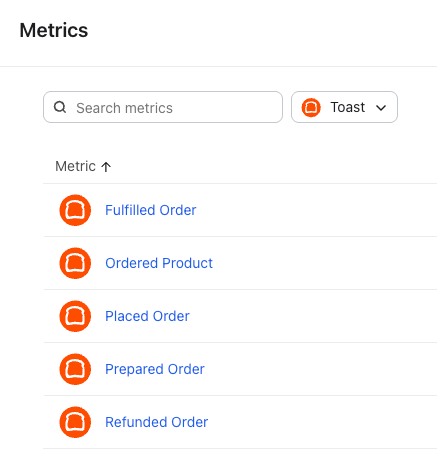
- Select Metrics. Here, you can view all of the metrics in your account. The metrics with a Toast icon represent all of the metrics synced from your Toast integration.
- Filter this view to see only Toast metrics by using the filter selector next to the search bar.
Placed Order
This event is tracked when an order was placed (submitted) to Toast and includes all of the product information about the items purchased, store information, and order details that can be used in follow up emails and SMS. You can filter and target Placed Order events based on the following criteria:
- $value The total value of the placed order, inclusive of any applied discounts.
- Items The names of the products in someone's order (e.g., tea or coffee).
- Item Count The count of line items in the order (e.g., 2)
- Fulfillment Method The behavior of the dining option.
- Fulfillment Method Name The name of the dining option.
- Order ID The unique ID associated with the order in the form of a string of letters and numbers.
- Discount Applied Whether or not a discount was used for the order. (true/false)
- Source The source of the order (e.g., Online, Toast Local, Toast Pickup App).
- Restaurant Name The name of the restaurant associated with the order.
- Revenue Center The name of the revenue center the order is associated with.
- Restaurant Service The name of the meal service the order is associated with.
- Modifiers Modifiers associated with the order.
- Menu Group Names The name(s) of the menu group(s) associated with the order.
Ordered Product
This event is also tracked when a customer places an order, but a separate event is tracked for each item someone purchases. For example, if someone buys a coffee and two sandwiches, 1 Placed Order event will be tracked along with 3 Ordered Product events; 1 Placed Order event for the purchase as a whole, and then 1 Ordered Product event for the coffee and 1 Ordered Product event for each of the sandwiches.
The events Klaviyo tracks include detailed information about each product someone purchases. This is useful when creating behavioral segments based on product variant options and other detailed information that's not available in the Placed Order event. You can filter and target Ordered Product events based on the following criteria:
- $value The total value of the placed order, inclusive of any applied discounts.
- Name The name of the ordered product in Toast (e.g., HAMBURGER PLATE).
- Product ID The ID associated with the product in your restaurant.
- Restaurant Name The name of the restaurant associated with the order.
- Revenue Center The name of the revenue center the order is associated with.
- Restaurant Service The name of the meal service the order is associated with.
- Modifiers Modifiers associated with the item.
- Menu Group Names The name of the menu group associated with the item.
Fulfilled Order
This event is tracked when an order is closed in your restaurant.
The event Klaviyo tracks includes all product information regarding the items someone purchased including product names and images so you can use that information in purchase follow up emails. You can filter and target Fulfilled Order events based on the following criteria:
- $value The total value of the fulfilled order, inclusive of any applied discounts.
- Items The names of the products in someone's order (e.g., tea or coffee).
- Item Count The count of line items in the order (e.g., 2).
- Fulfillment Method The behavior of the dining option.option used to fulfill the order.
- Fulfillment Method Name The name of the dining option.
- Order ID The unique ID associated with the order in the form of a string of letters and numbers.
- Discount Applied Whether or not a discount was used for the order. (true/false)
- Source The source of the order (e.g., Online, Toast Local, Toast Pickup App).
- Restaurant Name The name of the restaurant associated with the order.
- Revenue Center The name of the revenue center the order is associated with.
- Restaurant Service The name of the meal service the order is associated with.
- Modifiers Modifiers associated with the order.
- Menu Group Names The name(s) of the menu group(s) associated with the order.
Refunded Order
This event is tracked when a customer completes the checkout process in your restaurant and a payment is made, but the customer requests the payment to be returned. The event Klaviyo tracks includes all of the product information about the items someone purchased including product names, images, and variant information. You can filter and target Refunded Order events based on the following criteria:
- $value The total value of the placed order, inclusive of any applied discounts.
- Items The names of the products in someone's order (e.g., tea or coffee).
- Item Count The count of line items in the order (e.g., 2). Note that this does not account for the quantity of items).
- Fulfillment Method The behavior of the dining option.option used to fulfill the order.
- Fulfillment Method Name The name of the dining option.
- Order ID The unique ID associated with the order in the form of a string of letters and numbers.
- Discount Applied Whether or not a discount was used for the order. (true/false)
- Source The source of the order (e.g., Online, Toast Local, Toast Pickup App).
- Restaurant Name The name of the restaurant associated with the order.
- Revenue Center The name of the revenue center the order is associated with.
- Restaurant Service The name of the meal service the order is associated with.
- Modifiers Modifiers associated with the order.
- Menu Group Names The name(s) of the menu group(s) associated with the order.
- Refund Amount The amount refunded for the order in the restaurant's default currency.
Prepared Order
This event is tracked when all selections in an order are Ready. This event will only be captured if you are using Toast KDS. This event includes all of the product information about the items purchased, store information, and order details that can be used in follow up emails and SMS. You can filter and target Prepared Order events based on the following criteria:
- $value The total value of the placed order, inclusive of any applied discounts.
- Items The names of the products in someone's order (e.g., tea or coffee).
- Item Count The count of line items in the order (e.g., 2)
- Fulfillment Method The behavior of the dining option.
- Fulfillment Method Name The name of the dining option.
- Order ID The unique ID associated with the order in the form of a string of letters and numbers.
- Discount Applied Whether or not a discount was used for the order. (true/false)
- Source The source of the order (e.g., Online, Toast Local, Toast Pickup App).
- Restaurant Name The name of the restaurant associated with the order.
- Revenue Center The name of the revenue center the order is associated with.
- Restaurant Service The name of the meal service the order is associated with.
- Modifiers Modifiers associated with the order.
- Menu Group Names The name(s) of the menu group(s) associated with the order.
Synced guest data
In addition to the metrics Klaviyo syncs from Toast, Klaviyo will also create a unique profile for every customer that we sync. Here are the properties that are automatically synced from Toast:
- Phone Number
- First Name
- Last Name
- Toast Guest ID